Plugins

Plugins extend GemiHub with custom features. They are installed from GitHub releases and stored in your Drive.
Installing a Plugin
- Go to Settings > Plugins.
- Enter the GitHub repository in the format
owner/repo(e.g.,takeshy/hub-ronginus). - Click Install.
- The plugin files are downloaded from the latest GitHub release and stored on your Drive.
Managing Plugins
- Enable / Disable — Toggle plugins on or off without uninstalling.
- Update — Pull the latest release from GitHub.
- Uninstall — Remove the plugin and all its data.
- Settings — Some plugins provide custom settings tabs.
External Skills
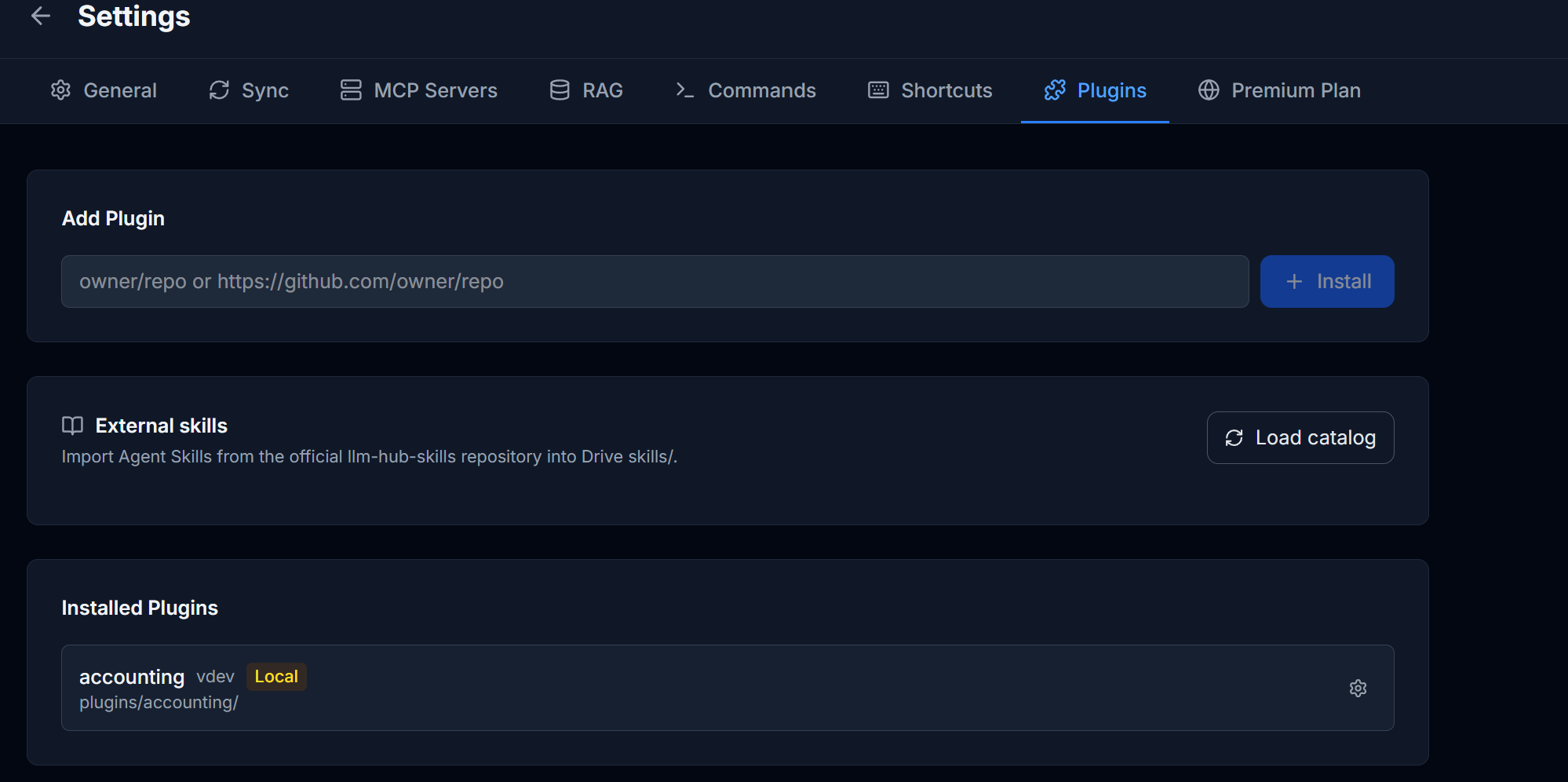
The Plugins tab also hosts External skills — Agent Skills imported from the official llm-hub-skills repository into your Drive skills/ folder. Click Load catalog to fetch the list of available skills, then Install the ones you want.
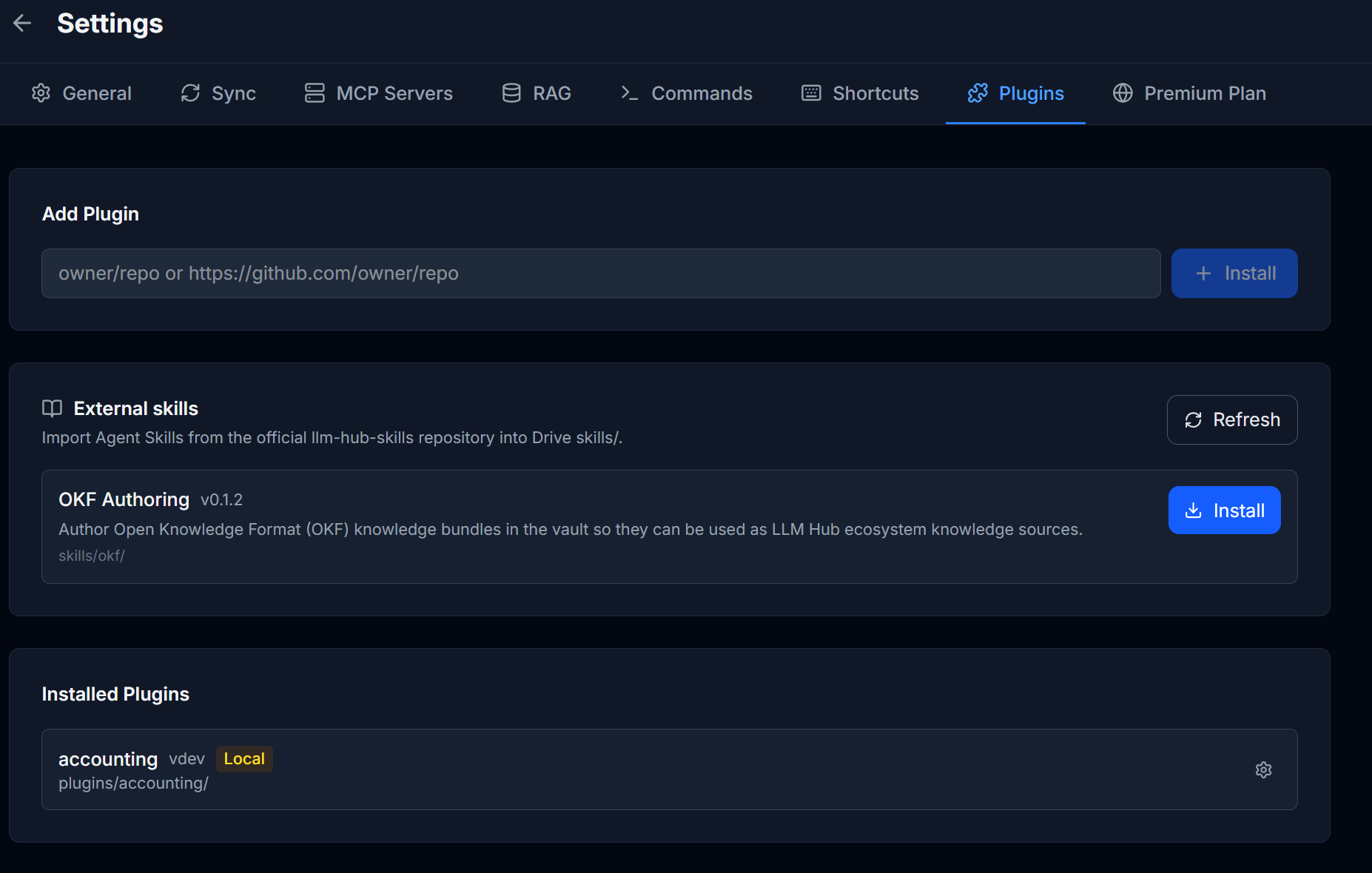
For example, the OKF Authoring skill teaches the AI to turn folders of notes into OKF knowledge bundles. Installed skills appear in the skill selector above the chat input like any other Agent Skill.
Plugin Capabilities
Plugins can:
- Add custom sidebar views and main editor views.
- Register slash commands for the chat.
- Add custom settings tabs.
- Access the Gemini AI API.
- Read and write Drive files.
- Use scoped persistent storage on Drive.
Example: Ronginus
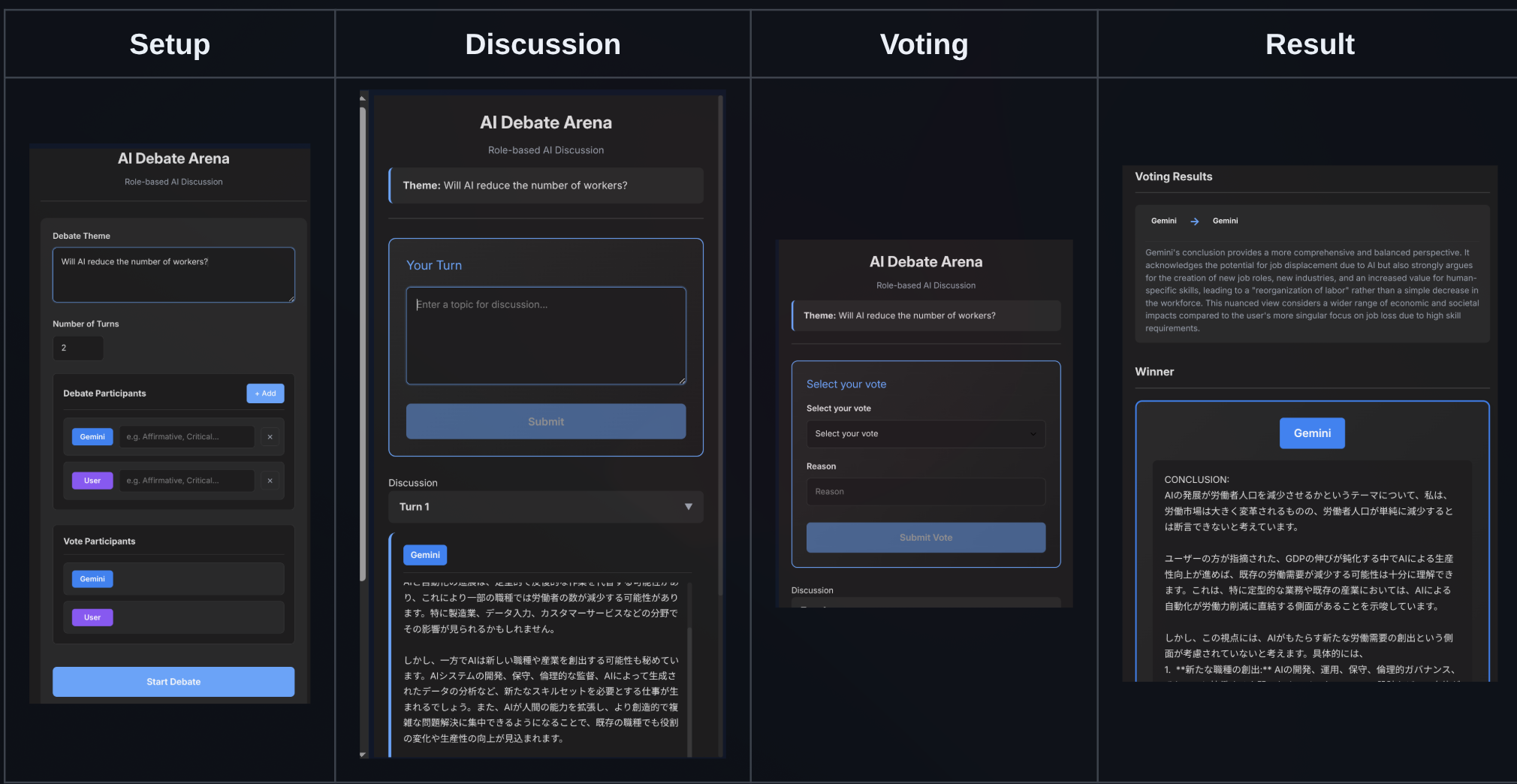
Ronginus is a debate plugin where multiple AIs discuss a topic from different perspectives. You can also participate as a debater. Install it with takeshy/hub-ronginus.
Developing Plugins
Plugins consist of a manifest.json, main.js, and optional styles.css. They receive a PluginAPI with access to language settings, UI registration, Gemini AI, Drive operations, and scoped storage. See the developer documentation for details.