Dashboards

The home screen can be a customizable dashboard saved as a plain .dashboard file in your Drive. A dashboard is a grid of widgets for notes, folder views, kanban boards, workflow output, and web embeds.
Creating and Editing
- Open the home screen or a
.dashboardfile. - Click Edit to show widget controls.
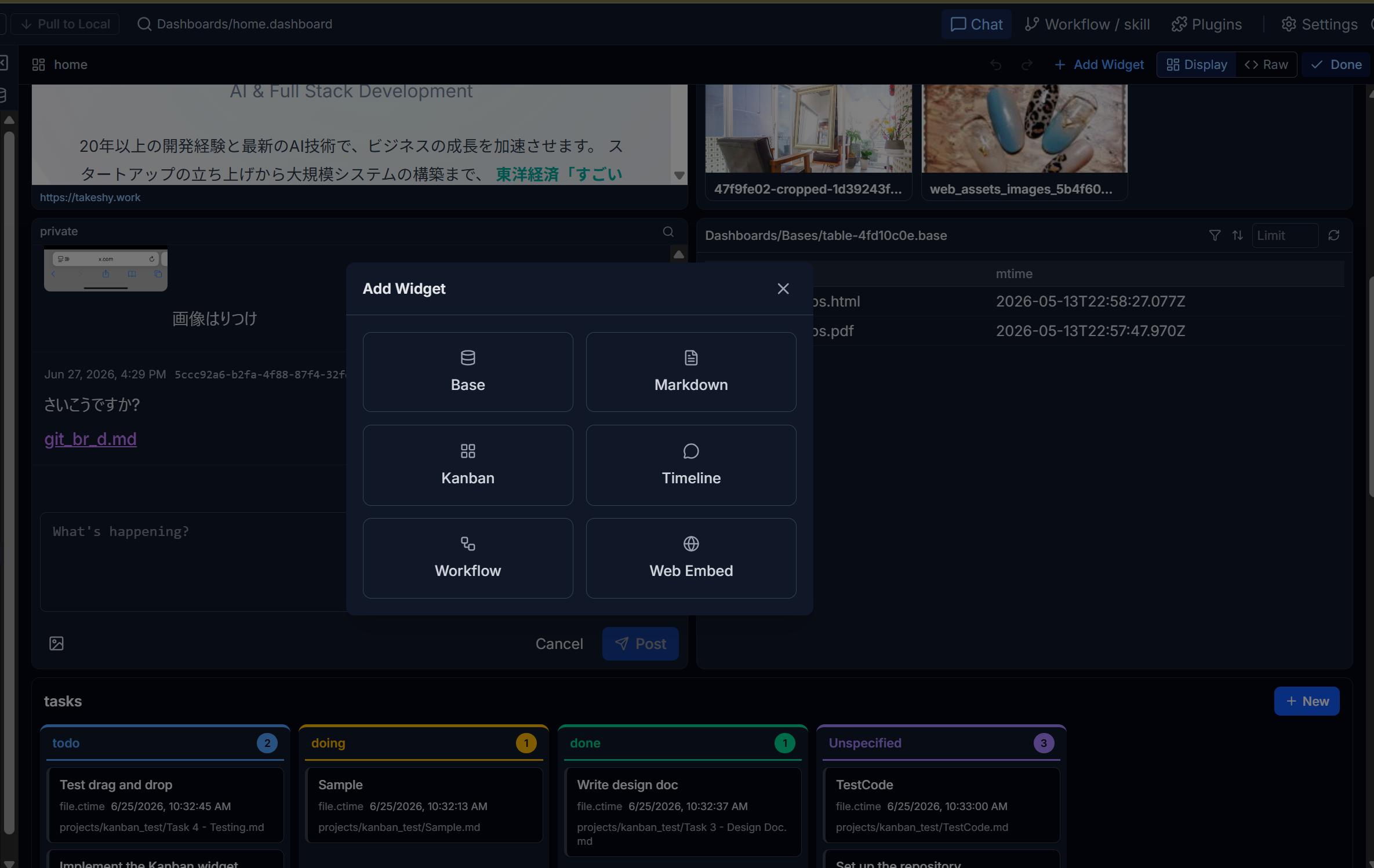
- Use Add widget to add file, base, kanban, calendar, Timeline, workflow, web, memo-list, or secret-manager widgets.
- Drag widgets to move them and drag the corner to resize.
- Use Undo / Redo for layout changes. Changes are saved automatically.
Widget Types
- Markdown — Embed and edit an existing Markdown file by Drive path.
- File list — Show files from a folder with view-time filter and sort controls.
- Card / Table — Render Markdown files from a folder using frontmatter fields. Table cells can edit frontmatter inline.
- Kanban — Group Markdown files by a status property. Create new cards from the board header or drag cards between columns to update frontmatter.
- Calendar — See local events and Timeline activity by month, and explicitly reflect Google Calendar events for the visible month.
- Workflow — Run a workflow and render its output as cards, a table, Markdown, or HTML. Use auto-refresh for recurring reports.
- Base — Render a view from a
.basefile. Ifviewis empty, the first view is used. - Web — Embed an external page in an iframe.
Calendar

Click Google events to fetch events for the month currently shown. The result is cached by month in this browser, so it remains available after opening another file or returning from the Launcher; use the button again when you want fresh data. Clicking a date opens its events and Timeline activity in a modal without enlarging the calendar. Use Add event to create a local event. Escape closes the day modal first while leaving the Launcher open.
Workflow Widgets
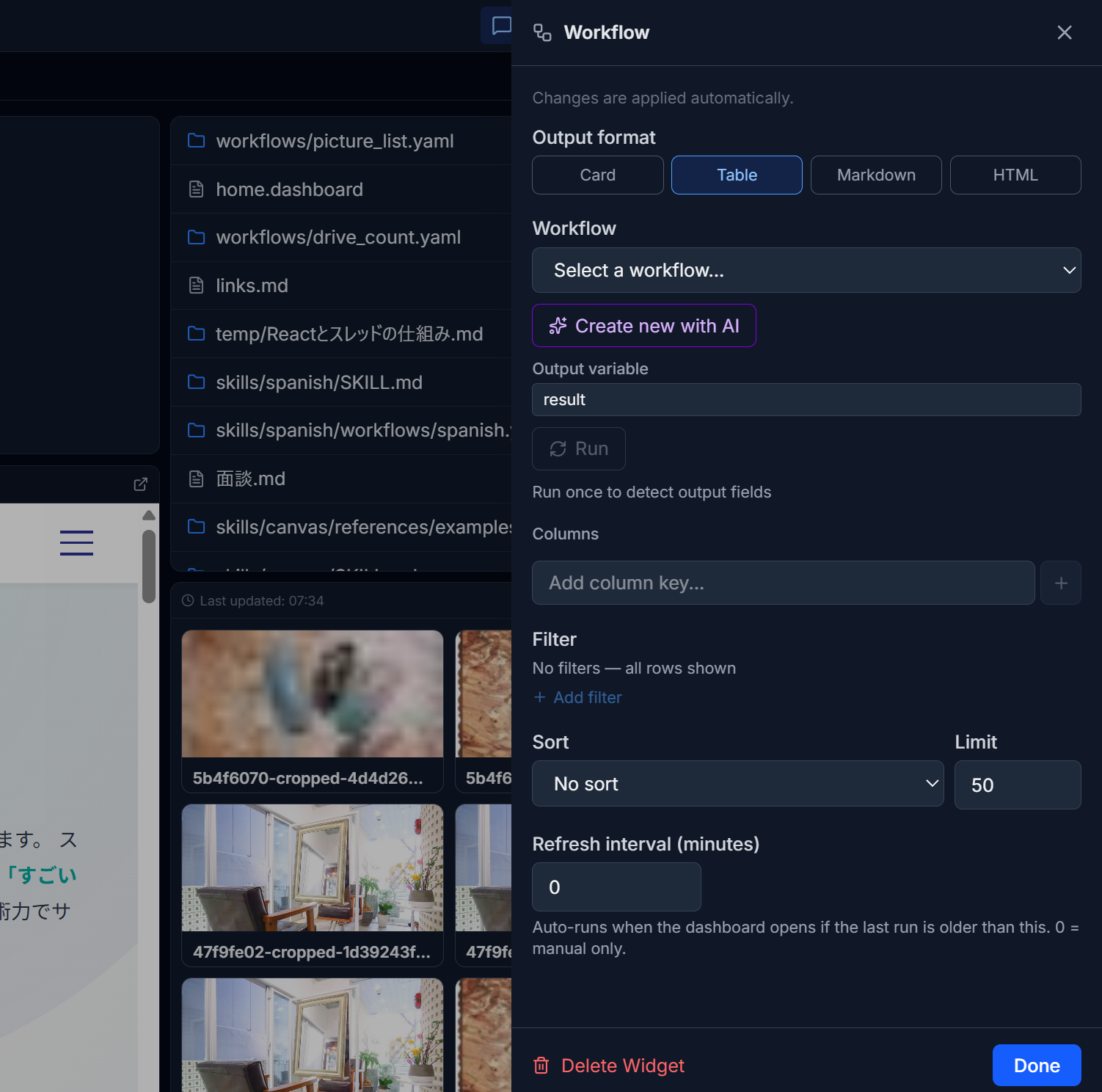
Workflow widgets read from a cache until you run them. Click Run in settings or Refresh in the widget header to execute the workflow. The output is saved in a sidecar cache file so dashboards open quickly.
Kanban Boards
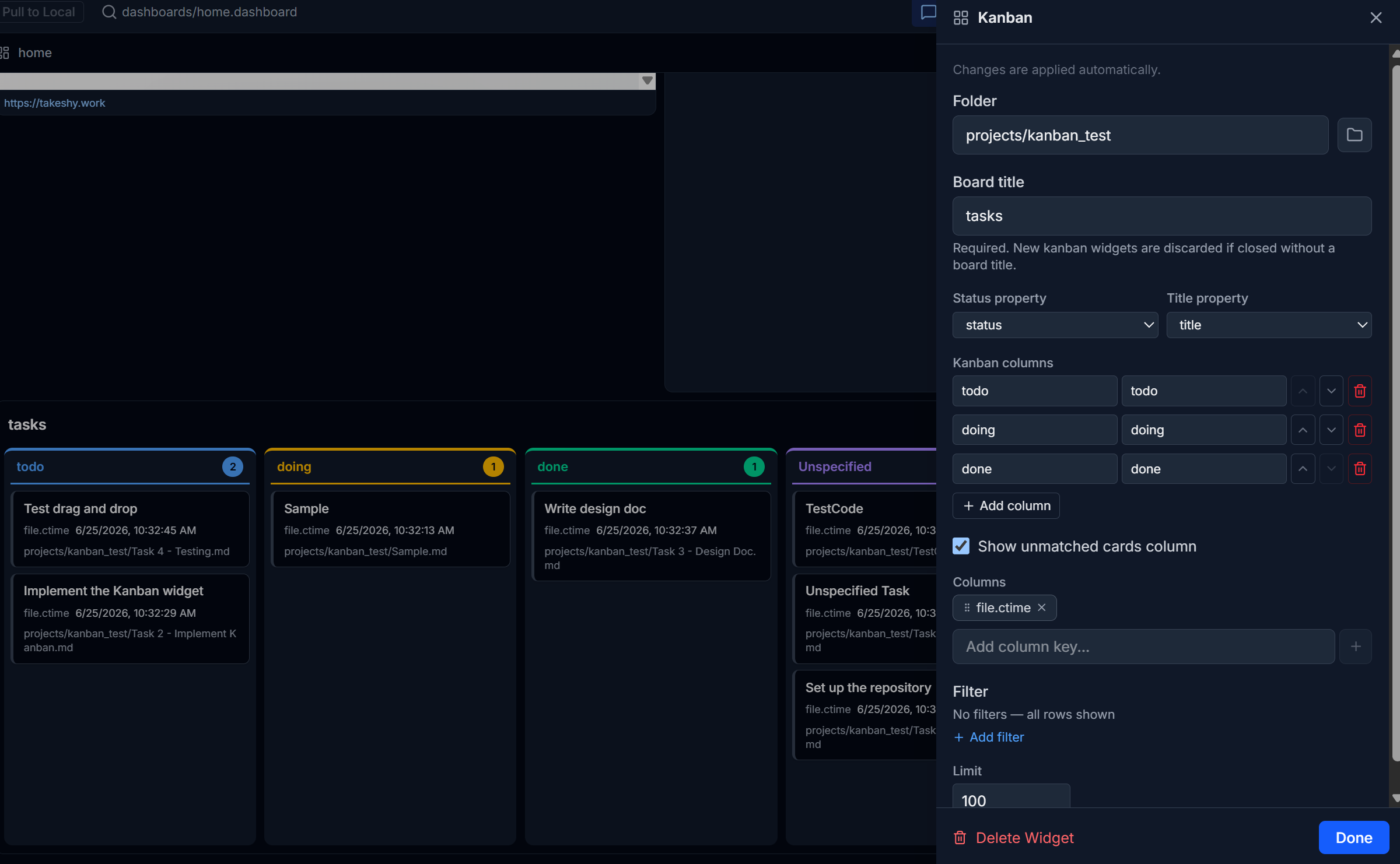
Kanban widgets work directly with Markdown files. Configure a folder, a status property, and columns. Dragging a card writes the new status back to the file frontmatter.
Raw YAML
Dashboards can also be edited as YAML. File references are path-based where possible, so files can be written by hand and synchronized with Obsidian-oriented tooling.