Document Memos
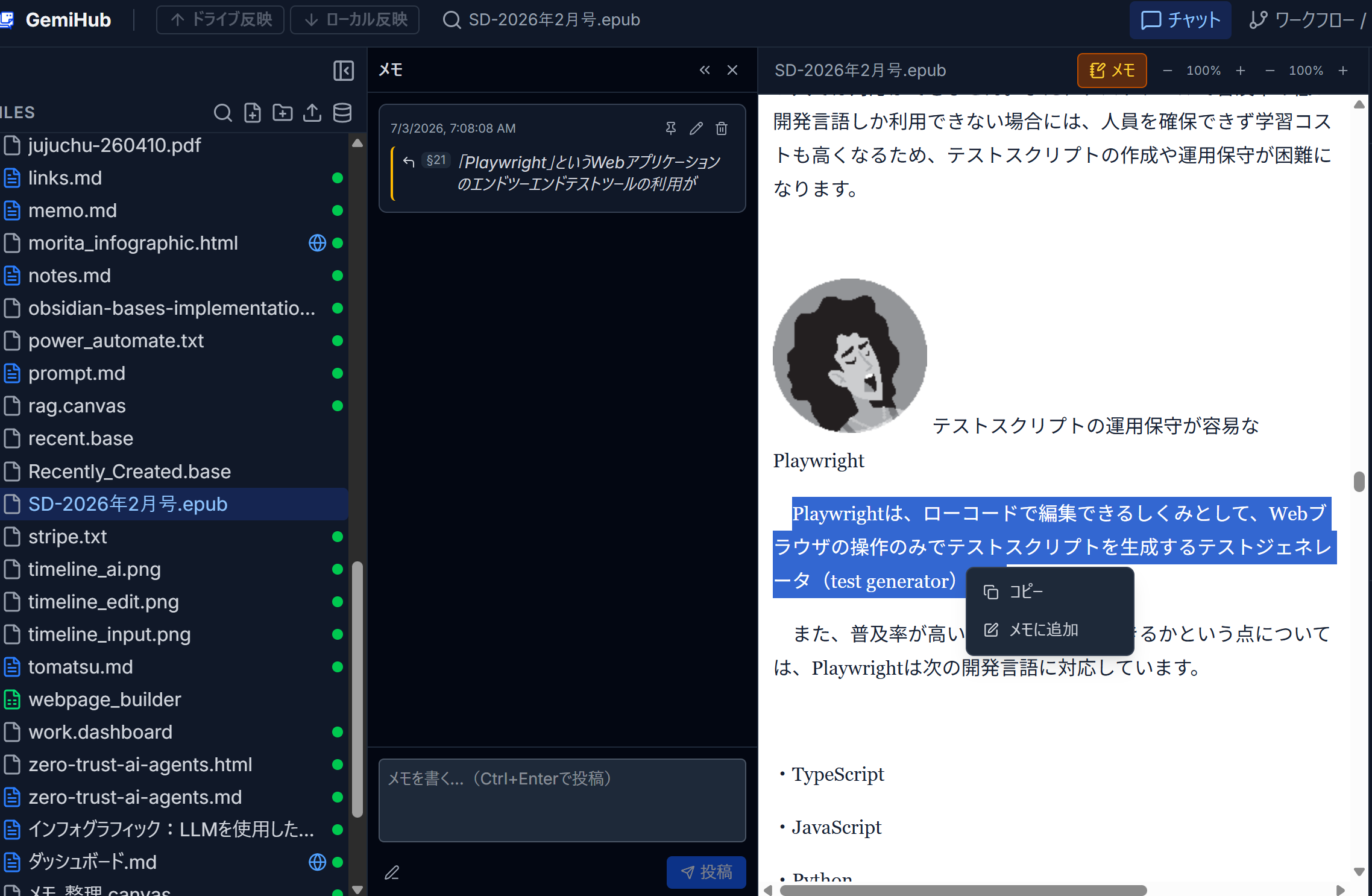
Every document gets its own memo timeline. Read a PDF, EPUB, Markdown, text, or image file — in the main viewer or in a dashboard File widget — and attach notes right where you read them.
Adding a Memo
- Select a passage in the document.
- Right-click and choose Add to memo.
- The memo panel opens with the quote attached — write your note and post it.
The selected quote is captured together with its surrounding context and painted as a highlight in the document. You can also open the memo panel any time with the Memos button in the viewer toolbar and post notes without a quote.
Highlights That Jump Both Ways
Click a highlight in the document to jump to its memo; click the quote inside a memo to jump back to the exact passage, with a brief flash so you can spot it. Anchors are quote-first, so highlights survive document edits and EPUB reflow.
The Memo Timeline
- Composer — write in WYSIWYG or raw Markdown; wiki links and embeds resolve and open in the IDE.
- Pin / Edit / Delete — manage entries after posting; pinned notes stay at the top.
- Collapse — the panel folds into a narrow rail so highlights stay visible while you read.
Memo List Widget
Add a Memo List widget to a dashboard to browse every annotated document: memo counts, a preview of the newest note (a final "done reading" is instantly visible), filtering and paging, and one click to reopen the source document.
Storage
Memos are ordinary Markdown files under Dashboards/Memos/ in your Drive — portable, searchable, and syncable. Because they are plain files, AI chat and RAG can use them like any other document.